

Copilot in PowerPoint: One-Prompt Failed? Use This Step-By-Step Dashboard Method
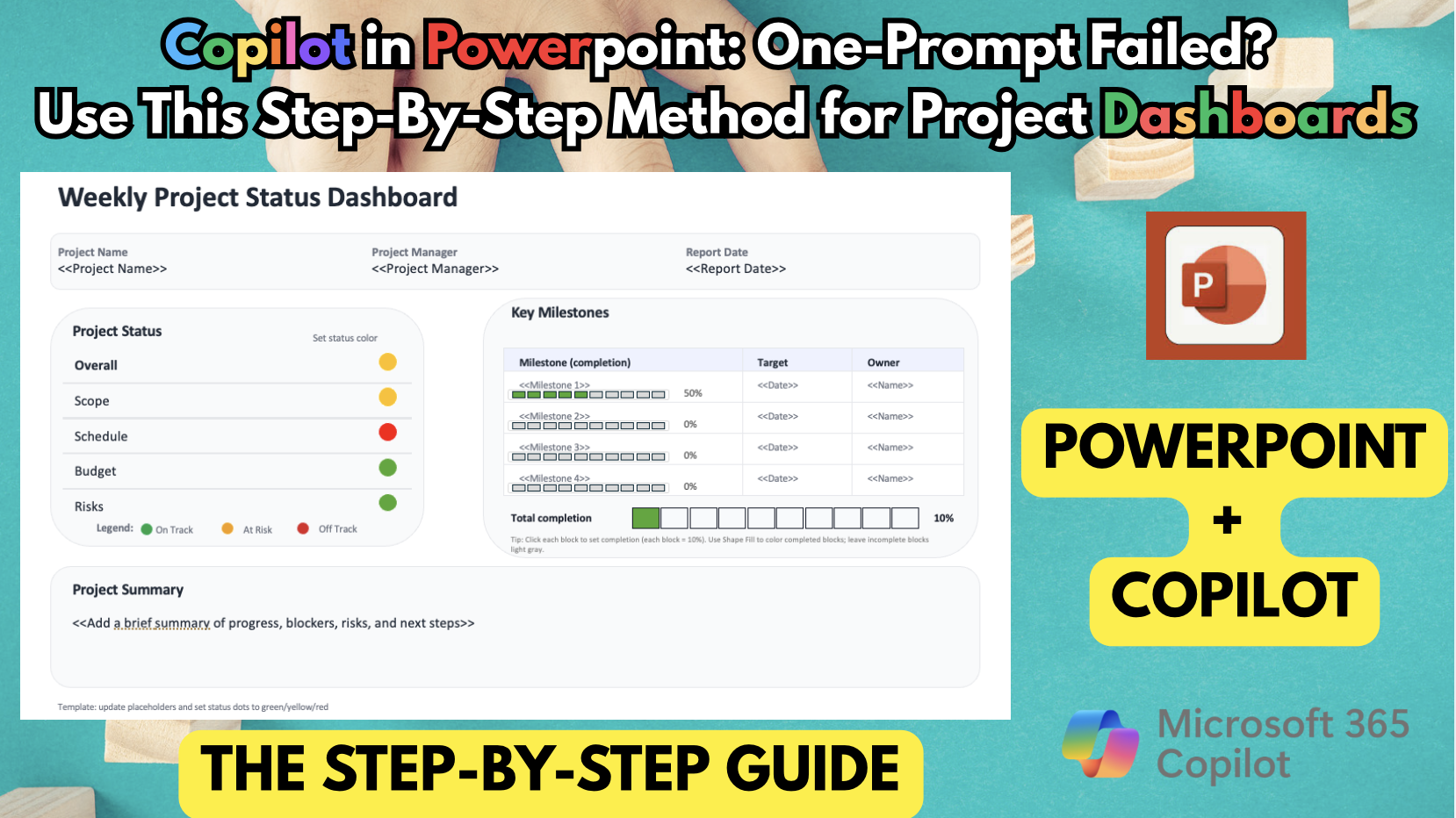
In my last video, I tried to create a weekly status report dashboard with just one prompt across 6 different AI methods—and none of them won my heart. Today, I’m making it right. I’m sharing my proven, step-by-step workflow for prompting Microsoft Copilot in PowerPoint to produce a project dashboard that actually meets professional standards. No more messy layouts or "AI hallucinations"—just a clean, modern, and data-rich report you can be proud to show your boss.
In this video, you’ll learn:
- Why "One-Prompting" fails for complex dashboards.
- How to use "Prompt Chaining" to build a slide deck section by section.
- The secret to maintaining design consistency across your slides.
- How to troubleshoot when Copilot makes mistakes (like the "vanishing bar"!).
- Why the "Human + AI" hybrid workflow is the ultimate time-saver.
Stop fighting the AI and start leading it. If you’re tired of mediocre results, this step-by-step guide is for you!
Coming Next: Now that we have the structure ready, my next video will show you how to use Copilot to assist you to fill in the weekly data . Don't forget to subscribe so you don't miss it!
#MicrosoftCopilot #PowerPoint #ProjectManagement #AIDashboard #PromptEngineering #Microsoft365 #AIatWork #ProjectReporting #ProductivityHacks #CopilotTutorial